Integrations · 3D configuration · Developers
Embed a 3D configurator on Shopify, WordPress or Webflow
Embed a Spokbee 3D configurator on any website with one iframe or script tag. Exact snippets for Shopify, WordPress and Webflow, plus branding and tracking.
You embed a 3D configurator on your website by pasting one iframe tag, or one script tag, into any page that accepts HTML. Spokbee generates that code the moment you publish a configurator. Paste it into a Custom Liquid section on Shopify, a Custom HTML block on WordPress or a Code Embed element on Webflow, and the page gains a live 3D product that buyers configure, price, quote and buy without leaving your site.
That is the whole integration. There is no plugin to install, no theme to rebuild and no second checkout to maintain. The sections below give the exact snippet, the exact place to paste it on each platform, and how to make the result look and track like the rest of your site.
How do you embed a 3D configurator on a website?
Publish the configurator, open Share & embed in the Spokbee builder, and copy the generated iframe code into your page. The frame loads the configurator in embed mode: no surrounding chrome, automatic height, and the same parameters, rules, pricing, quotes and checkout the hosted page offers. One tag does the work that used to take a custom development project.
When you click Publish, Spokbee creates a shareable URL for the configurator and offers the embed code beside it, as the quickstart guide describes. The code looks like this, with your workspace and product in the address:
<iframe
  src="https://spokbee.ai/your-workspace/configure/your-product?embed=1"
  width="100%"
  height="800"
  frameborder="0"
  allow="clipboard-write"
  title="Product Configurator"
  style="border: none; max-width: 100%;"
></iframe>
The ?embed=1 flag switches the configurator into embed mode. In that mode it reports its own height to the parent page whenever its content changes, sends the current price to the parent as the buyer makes choices, and sends the full configuration when the buyer adds to cart. The allow="clipboard-write" attribute lets buyers copy a share link from inside the frame. Width at 100 percent makes the frame follow the width of whatever column you place it in, on desktop and mobile.
Compare that with the old way of selling a configurable product online: a static product page, a PDF spec sheet, a "request a quote" form, and a week of email before the buyer learns what their configuration costs. The embed replaces all four with a product the buyer can turn, change and price on the spot.
What works inside the embedded configurator?
Everything the hosted configurator does works inside the embed, because the embed is the same configurator served in a frame. Buyers rotate and zoom the 3D model, pick options that engineering rules keep valid, watch the price update, request a branded quote, pay by card and download the configured CAD, all from your page.
| Capability | Inside the embed | Where it is documented |
|---|---|---|
| Interactive 3D model with your materials and lighting | Yes | 3D viewer and materials |
| Engineering rules that block invalid combinations | Yes | Constraints |
| Live pricing: surcharges, tiers, matrices, formulas | Yes | Pricing |
| Branded PDF quote with digital signature | Yes | Quotes |
| Cart and Stripe checkout | Yes | Commerce and checkout |
| Configured CAD download, where enabled for the product | Yes | Integrations |
| Workspace branding: colours, fonts, logo | Inherited automatically | Branding and whitelabel |
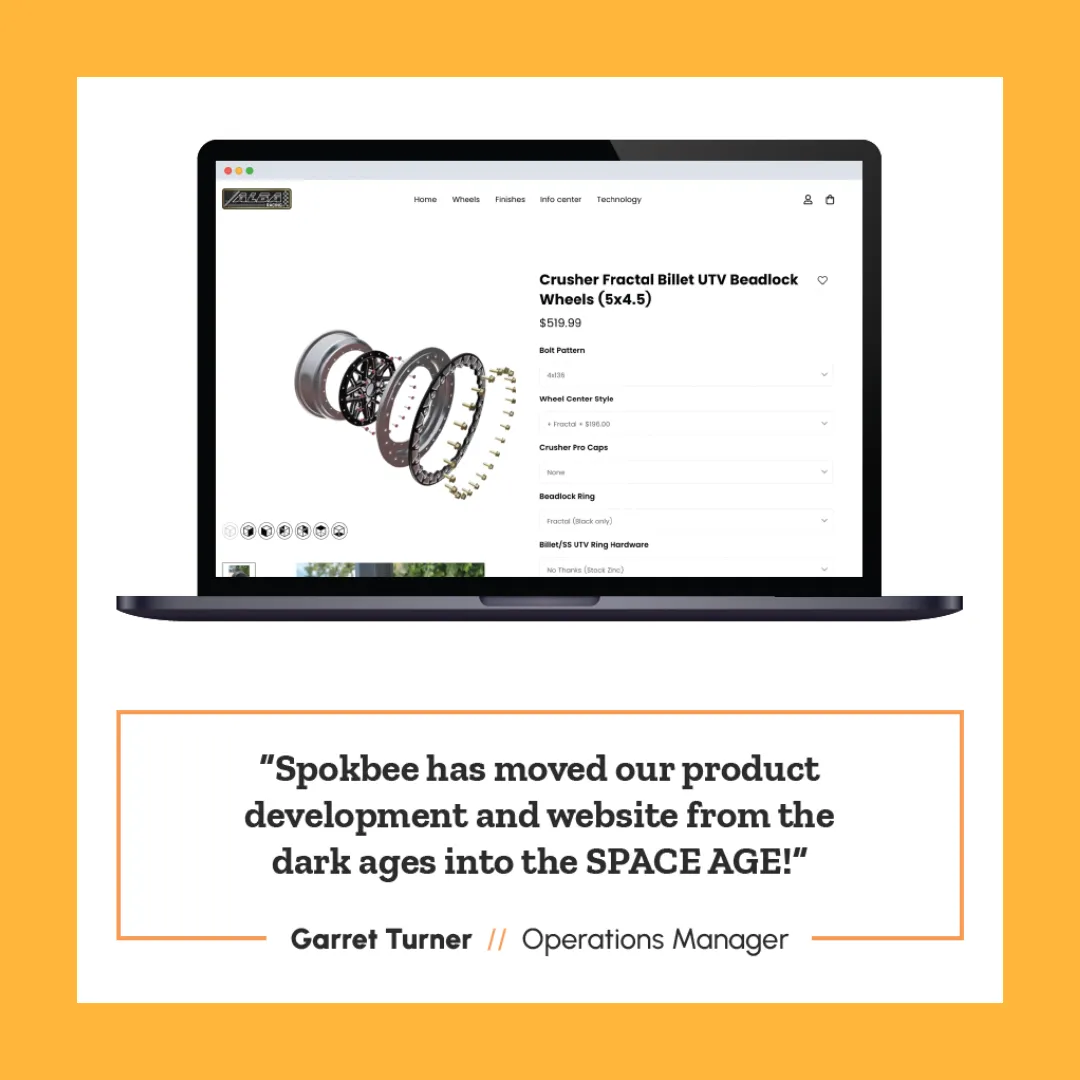
This is what Spokbee's multi-channel embed is for: drop the configurator into any website, dealer portal or e-commerce store with a single embed, white-label ready, on every device. Alba Racing is a public example. Spokbee built its custom wheel configurator on Shopify, where customers mix and match centers, barrels, rings, caps and hardware and preview the exact combination before they buy.
How do you embed a 3D configurator on Shopify?
On Shopify, paste the Spokbee iframe into a Custom Liquid section on the product or landing page template in the theme editor. Shopify requires every theme in its store to include a Custom Liquid section, so the option is there whichever store theme you use. The configurator renders as part of the page, inside your theme's header, footer and navigation.
The steps, from Shopify's own theme editor guide:
- From your Shopify admin, go to Online Store and click Edit theme on the theme you want to change.
- Pick the template you want from the page drop-down, for example the product template for a configurable product.
- In the sidebar, click Add section and select Custom Liquid.
- Paste the iframe code from Spokbee's Share & embed panel into the section's field.
- Drag the section to where you want it on the page and click Save.
Shopify documents the add-section flow on its Sections and blocks page, and lists the Custom Liquid section as a theme requirement in its Theme Store requirements (both checked October 2026). Work on a duplicate of your live theme first if you want to preview the result before customers see it.
How do you embed a 3D configurator on WordPress?
On WordPress, add a Custom HTML block to the page in the block editor and paste the Spokbee iframe into it. Type /html in a new paragraph to insert the block quickly, click Edit HTML, paste the code and press Update. The block shows a live preview beside the code, so you see the configurator before you publish.
One detail matters for who does the pasting. WordPress strips tags such as <script> and <iframe> from a Custom HTML block when the author lacks the unfiltered_html capability, which is the case for a Contributor. Have an Administrator or Editor add the embed and it stays intact. The behaviour is described on the official Custom HTML block documentation page (checked October 2026).
Page builders that sit on top of WordPress each have their own HTML element, and the Spokbee code works in all of them for the same reason it works in a plain block: it is standard HTML with nothing to install.
How do you embed a 3D configurator on Webflow?
On Webflow, drag a Code Embed element onto the page, inside the section or div where you want the configurator, and paste the iframe code into it. Webflow renders standard HTML, CSS and JavaScript in that element, so both the plain iframe and the Spokbee script tag work. The Code Embed element requires a paid site plan or Workspace.
Webflow's own lesson, Custom code at the layout level (checked October 2026), covers placing the element inside a section, div, grid or component. Paste only the Spokbee snippet: no <html>, <head> or <body> wrappers, since the element inserts into a page that already has them. Set the containing element to full width so the configurator uses the whole column.
| Platform | Where to paste | Who can do it | Note |
|---|---|---|---|
| Shopify | Theme editor, Add section, Custom Liquid | Store staff with theme access | Available on every theme that meets Shopify's theme requirements |
| WordPress | Block editor, Custom HTML block (/html) | Administrator or Editor | Contributors have iframe and script tags stripped on save |
| Webflow | Designer, Code Embed element | Anyone editing the site | Requires a paid site plan or Workspace |
| Any other site | Any HTML field, template or page source | Whoever edits the HTML | Standard iframe; nothing to install |
How do you make the embed look like part of your site?
Spokbee applies your workspace branding to every configurator, so the embed arrives in your colours, fonts and logo with no extra code. On the Professional plan or higher you can go further: serve configurators from your own domain, such as configure.yourdomain.com, and hide the Powered by Spokbee badge for a fully white-labelled page.
Set brand colours once in Settings, under Branding. Primary, secondary, accent, background and text colours apply to buttons, headings, accents, backgrounds and text across the configurator and the quote PDFs it produces. Spokbee warns you when the contrast between background and text drops below WCAG AA, so the embed stays readable on your site.
For a custom domain, enter the domain in Settings, add the CNAME record shown there at your DNS provider, and Spokbee verifies the record and provisions SSL automatically. From then on the configurator address in your iframe is your own domain. The branding and whitelabel guide walks through each step.
Because branding lives in the workspace and not in the embed code, a change to your colours or logo shows up in every embedded configurator on every site at once. You never touch the pasted snippet again.
What does the embed script add beyond the iframe?
The Spokbee embed script creates the iframe for you, resizes it automatically and lets your page react to price changes and add-to-cart events. Use it when your storefront wants to show the live price in its own header, push a configured product into its own cart, or mount the configurator inside a tab, modal or product-page section.
Load the script from Spokbee and create a widget inside any container element:
<div id="configurator"></div>
<script src="https://spokbee.ai/embed.js"></script>
<script>
  new SpokbeeWidget({
    container: "#configurator",
    workspace: "your-workspace",
    product: "your-product",
    onPriceUpdate: function (price) {
      // price.total, price.currency, price.basePrice, price.lineItems
    },
    onAddToCart: function (payload) {
      // payload.configuration and payload.price for your own cart
    }
  });
</script>
The script is plain JavaScript with no dependencies and no build step. It appends the configurator iframe to the container, listens for the messages the configurator posts to the parent page, applies each reported height to the frame, and calls your callbacks with the current price and the finished configuration. Calling destroy() on the widget removes the frame and its listeners, which matters inside single-page storefronts that mount and unmount sections. You can read the script itself at spokbee.ai/embed.js.
If you paste the plain iframe instead, you still get auto-resize: the configurator detects that it is framed and posts its height anyway. The script simply saves you from writing the listener.
How do you know the embed is working?
Spokbee records an embed_load event every time a configurator loads inside an iframe, and tracks the rest of that session the same way it tracks the hosted page. Open Analytics in your workspace and you see parameter changes, quote requests and checkouts from embedded sessions alongside the ones from the hosted configurator.
The analytics guide lists each tracked event. Embedded sessions produce the same funnel as hosted ones, from first load to confirmed Stripe payment, so you can compare the product page with the embedded configurator on it and watch the quote rate move. For a Shopify store, that is the difference between a buyer leaving to email for a price and a buyer finishing a configured order on the page they landed on.
Before you share the page, run through the configurator inside the embed once on a phone and once on a desktop. Check that the frame grows when a long option group expands, that the 3D viewer renders in the final column width, and that the quote PDF carries the product image you expect. Everything you fix is fixed in the Spokbee builder and republished; the snippet on your site never changes.
Sources
- Spokbee quickstart, publish and embed: spokbee.ai/docs/quickstart
- Spokbee embed script: spokbee.ai/embed.js
- Spokbee branding, custom domains and badge removal: spokbee.ai/docs/workspace/branding
- Spokbee analytics events, including
embed_load: spokbee.ai/docs/workspace/analytics - Spokbee commerce and Stripe checkout: spokbee.ai/docs/selling/commerce
- Spokbee CAD export and integrations: spokbee.ai/integrations
- Shopify, Sections and blocks (checked October 2026): help.shopify.com
- Shopify, Theme Store requirements, Custom Liquid section (checked October 2026): shopify.dev
- WordPress, Custom HTML block (checked October 2026): wordpress.org
- Webflow University, Custom code at the layout level, Code Embed element (checked October 2026): university.webflow.com
Frequently asked questions
How do I embed a 3D configurator on my website?
Publish the configurator in Spokbee, open the Share & embed panel and copy the iframe code it generates. Paste that code wherever your site accepts HTML: a Custom Liquid section in Shopify, a Custom HTML block in WordPress or a Code Embed element in Webflow. The configurator loads inside the frame with 3D, live pricing, quotes and checkout working exactly as they do on the hosted page.
Does the embedded configurator resize to fit the page?
Yes. In embed mode the configurator posts its height to the parent page every time its content changes, and the Spokbee embed script applies that height to the iframe automatically. If you paste the plain iframe tag instead of using the script, set a starting height and the frame keeps the configurator fully visible on desktop and mobile.
Can the embed use my own domain and branding?
Yes. Spokbee applies your workspace colours, fonts and logo to every configurator, so the embed inherits them without any extra code. On the Professional plan or higher you can serve configurators from a custom domain such as configure.yourdomain.com by adding a CNAME record, and hide the Powered by Spokbee badge for a fully white-labelled experience.
Can buyers quote, pay and download CAD from inside the embed?
Yes. The embed is the full configurator, not a preview. Buyers can request a branded PDF quote, add configured products to a cart and pay through Stripe checkout, and download the configured model as CAD in the formats you enable for the product. Every action is recorded in your workspace analytics with the embed as its source.
Keep reading

From PDFs to Interactive Demos: Why Your Product Pages Need a 3D Upgrade
Discover why interactive 3D configurators are the future of B2B sales. Learn how Spokbee helps manufacturers upgrade product pages with real-time visualization, instant quotes, and error-free configurations.
Custom Wheels in Real Time: How Alba Racing Uses Spokbee to Drive Engagement and Sales
Discover how Alba Racing transformed custom wheel sales with Spokbee’s CAD integration and real-time Shopify configurator. Faster R&D, higher engagement, and more confident customers—all in one solution.

5 Reasons You Should Switch to Real-Time 3D Visualization—Now
Still using PDFs and screenshots to sell your products? Discover why real-time 3D visualization is the key to better customer engagement, faster sales, and fewer quoting errors.